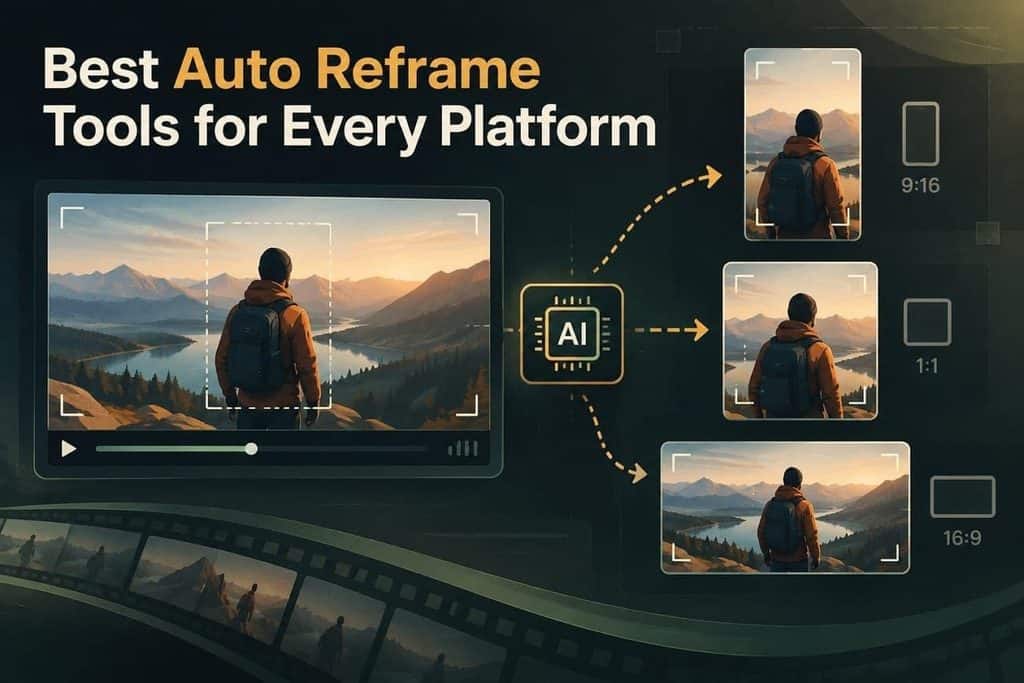
A single video shoot now needs many formats for wide, vertical, and square platforms. Creating each version by hand takes time and requires repeated frame changes everywhere. An auto reframe tool tracks subjects and keeps them visible in new ratios.
It reduces manual work by moving the frame around important parts of footage. These tools differ in tracking quality, controls, prices, and features for creators. Moreover, we will explore how to resize videos for platforms using Filmora with ease.
Part 1. What Does Auto Reframe Do and How Should You Compare Tools?
An auto reframe Filmora tool studies footage and finds the main subject viewers should notice. It adjusts the frame position to keep important actions visible across ratios. Unlike basic cropping, it follows movement and keeps subjects inside the new frame.
This process helps creators prepare videos for different platforms with fewer edits. Let’s explore the key factors that separate different tools in this comparison:
- Subject and Action Tracking: Tracking quality shows how accurately a tool identifies important subjects. Strong tracking keeps people, objects, and actions visible during different movements and scenes.
- Control After the Analysis: Post-reframe controls determine how much users can adjust AI results. Tools with keyframes or manual controls provide more freedom when automatic framing needs changes.
- Processing Speed: Processing speed affects how quickly creators can complete reframing tasks. Faster tools save time, while deeper analysis may require more processing time.
- Workflow Integration: Workflow integration shows how easily reframing fits into existing editing processes. Built-in features reduce extra exports and imports compared with separate applications.
- Suitability for Your Footage: Different tools may perform better depending on the video type and shooting style. Short clips, interviews, tutorials, vlogs, product videos, and events can require different tracking strengths.
Note: These factors help compare auto reframe tools based on accuracy, control, speed, and workflow needs.
Part 2. 5 Best Auto Reframe Tools to Consider
The following auto reframe tools offer different features, controls, and pricing options. Now, let’s explore the top tools and their key capabilities.
Filmora
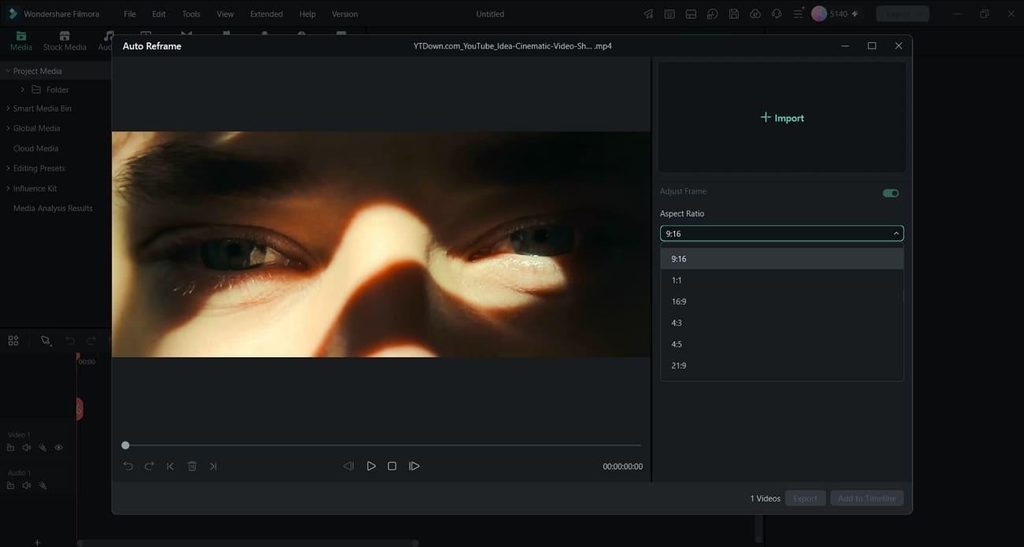
Filmora helps creators adapt one video shoot for several platform formats. Its auto reframe feature changes aspect ratios while keeping key subjects visible. Users can create vertical, square, widescreen, and other versions from original footage.
Moreover, Filmora analyzes clips and adjusts framing to follow important actions during movement. Creators can review results and make manual framing changes when needed afterward. It suits interviews, tutorials, vlogs, and social videos needing faster content creation.
Pros
- Filmora offers 5 ratio presets for different video platforms.
- Auto, Fast, and Slow modes adjust subject tracking speed.
- Reframed clips can move directly onto Filmora’s timeline.
Con
- Free Filmora exports include watermarks until users upgrade plans.
Adobe Premiere Pro
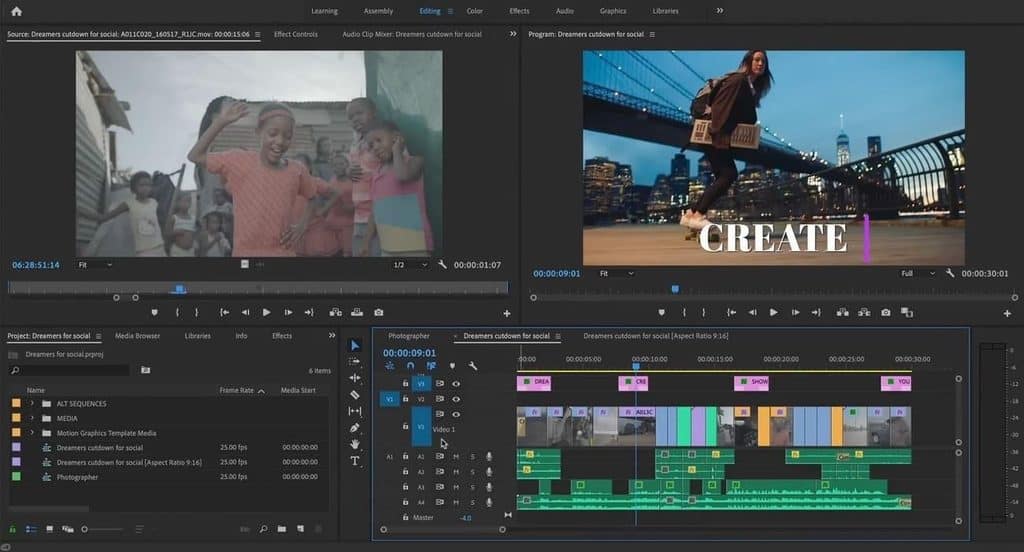
Adobe Premiere Pro offers AI reframing tools for editors creating videos across platforms. Its feature detects subjects and adjusts framing for different aspect ratios. Users can review and refine generated keyframes after the reframing process finishes. It fits professional workflows needing detailed control over video composition changes.
Pros
- Premiere Pro applies Auto Reframe across complete sequences quickly.
- Generated position keyframes remain editable inside Premiere Pro timelines.
- Sensei-powered reframing adjusts motion for varied shot movements.
Cons
- It requires Creative Cloud subscription access for usage.
- Long sequence analysis can take more time to complete.
CapCut
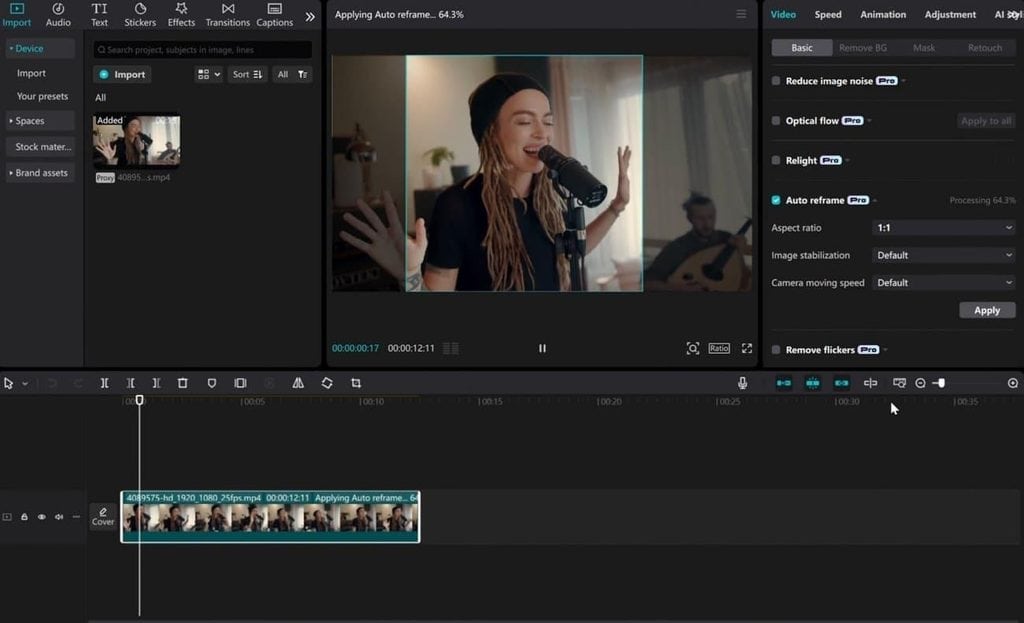
Social creators need quick tools that adapt videos for multiple platforms. CapCut offers simple reframing options for fast social video changes. CapCut focuses on quick mobile editing. Its AI adjusts framing across desktop, mobile, and web versions.
Pros
- Supports auto-reframing across mobile, desktop, and web platforms.
- Projects sync through CapCut accounts across different editing devices.
- Vertical edits require only a few steps inside CapCut.
Cons
- CapCut provides fewer tracking adjustments than professional editing software.
- Cloud-based processing requires internet access during reframing tasks.
DaVinci Resolve
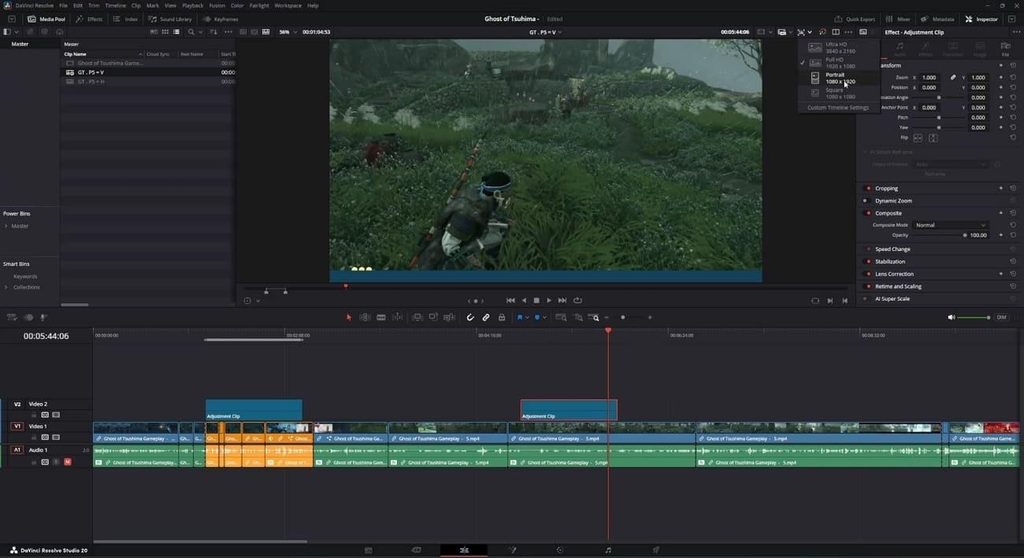
Professional editors can use DaVinci Resolve for advanced video reframing workflows. Its Smart Reframe feature uses AI to adjust clips automatically. Users can refine generated keyframes to control the final composition. It fits creators needing reframing with color and finishing tools.
Pros
- Smart Reframe creates editable keyframes through Neural Engine analysis.
- DaVinci Resolve supports Linux, Windows, and macOS platforms.
- Color grading and reframing stay within one Resolve project.
Cons
- Smart Reframe feature requires a paid DaVinci Resolve Studio license.
- Resolve’s interface feels complex for first-time video editors.
Final Cut Pro
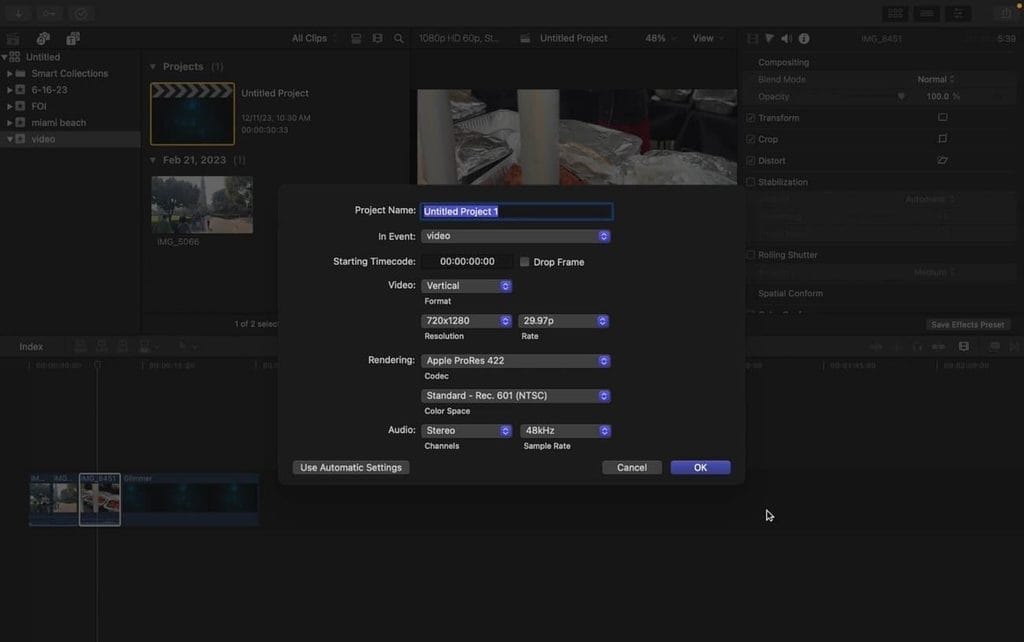
Mac video editors seeking automatic reframing can use Final Cut Pro Smart Conform. The auto-reframe feature adjusts clips for different project aspect ratios. Users can refine crop positions after automatic conforming finishes the process. It suits Apple editors wanting simple reframing inside their editing workflow.
Pros
- Smart Conform adjusts clips without requiring external plugins.
- Final Cut Pro offers subscriptions plus a one-time purchase option.
- Apple silicon optimization speeds up reframing analysis on Mac.
Cons
- Final Cut Pro currently runs only on Mac systems..
- Smart Conform offers fewer crop adjustments than rival tools.
Auto Reframe Tools Comparison
Now, look at the table below for key differences between these reframing tools:
| Tool | Pricing Plans | Platforms | Reframe Control | Best For |
| Filmora | Free trial, Annual, Cross-Platform Annual, Perpetual | Windows, Mac | 5 ratio presets, 3 tracking speeds, manual frame adjustment | Publishing one shoot to several platforms |
| Adobe Premiere Pro | Free trial, Single App, Creative Cloud All Apps | Windows, Mac | Motion presets plus editable position keyframes | Editors already inside Creative Cloud |
| CapCut | Free tier, CapCut Pro subscription | Windows, Mac, mobile, web | Automatic, with limited tracking options | Fast social cuts made on a phone |
| DaVinci Resolve | Free version, Studio one-time license | Windows, Mac, Linux | Neural Engine keyframes, available in Studio version | Grading and finishing in one app |
| Final Cut Pro | Free trial, subscription, or one-time purchase | Mac only | Automatic conform, light manual adjustment | Mac editors avoiding subscriptions |
Part 3. How to Use Auto Reframe in Filmora
The auto-reframe Filmora feature prepares clips by adjusting framing before editing begins. Follow the steps below to create reframed videos with Filmora’s workflow:
Step 1. Access the Tool and Bring In the Clip
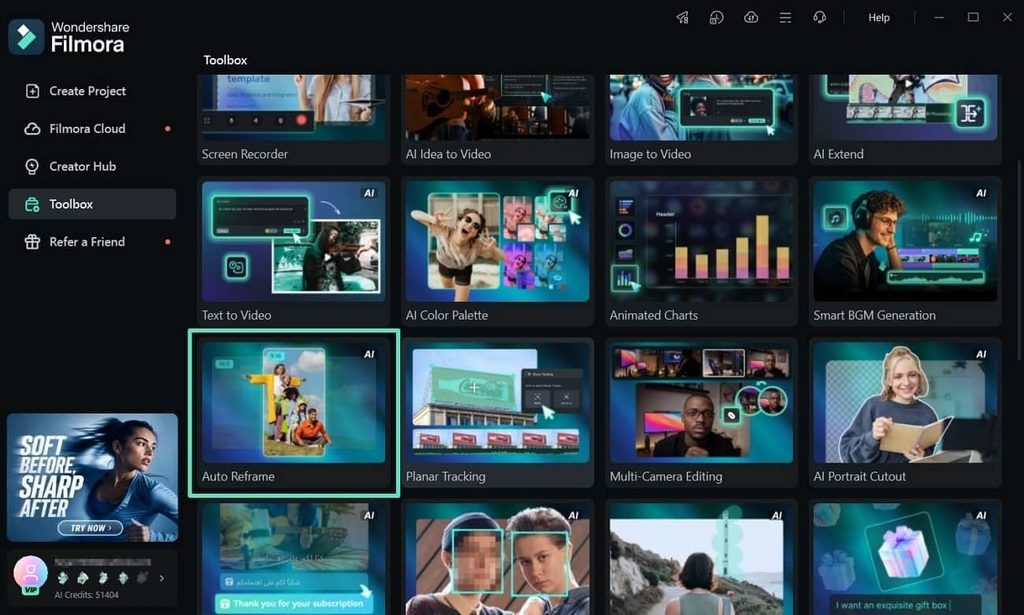
Choose “Auto Reframe” from the Filmora start window, or right-click a clip in the “Media” panel and pick the same option. Use “Import” to bring in the video clip.
Step 2. Set the Ratio and the Tracking Speed
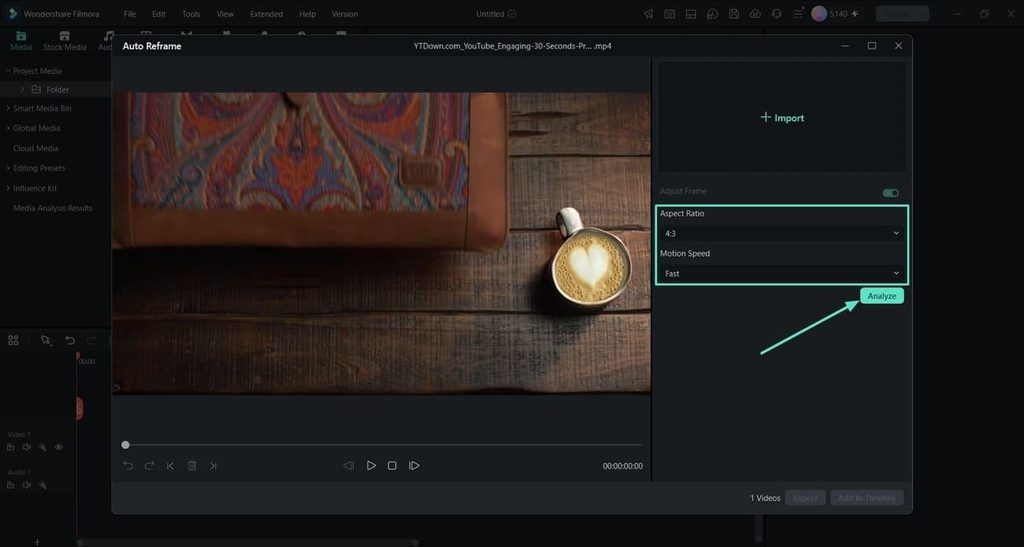
Next, select a ratio in the “Aspect Ratio” section and choose “Auto,” “Fast,” or “Slow” for the tracking speed. Slow fits static interviews, while fast follows subjects crossing shots. After that, press “Analyze” to start the process.
Step 3. Review the Frame, Then Send It Back
Once the auto-reframing is done, play the video to review it. Then, press “Export” to directly save the video. If any further editing is required, simply click “Add to Timeline” to place it on the main editing timeline.
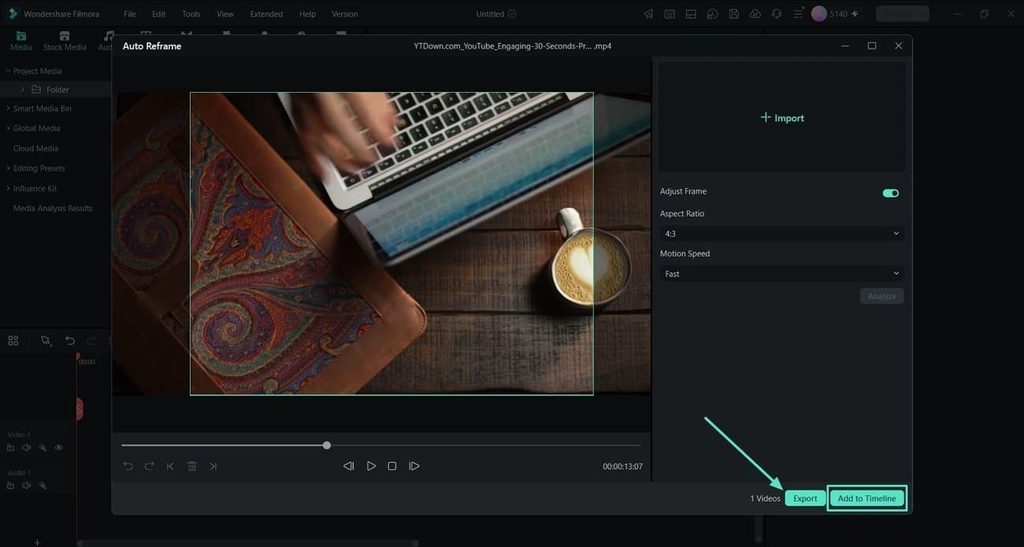
Note: Review the reframed result before exporting the final video file. Create another ratio version by applying the feature again to the source footage.
Part 4. When Auto Reframe Works Well, and When Manual Review Matters
Auto reframe works best when subjects remain clear throughout the video scenes. The table below shows where automatic framing succeeds and needs review:
| Reframes Cleanly | Needs a Closer Look |
| Talking-head videos with one clear person in the frame | Crowd scenes where multiple faces compete for tracking attention |
| Product demonstrations focused on hands and featured items | Fast camera movement where tracking may lose the main subject |
| Interviews recorded with a fixed camera position | Two people placed at opposite sides of a wide frame |
| Gameplay and social clips with a clear focal point | Text-heavy shots and intentional wide compositions |
Even simple cases need review because framing shapes the viewer’s first impression. Opening shots and transitions need checks when tracking changes in subject positions. Captions, logos, and calls-to-action must remain visible after every crop.
Part 5. Auto Reframe vs. Manual Cropping and Publishing Checklist
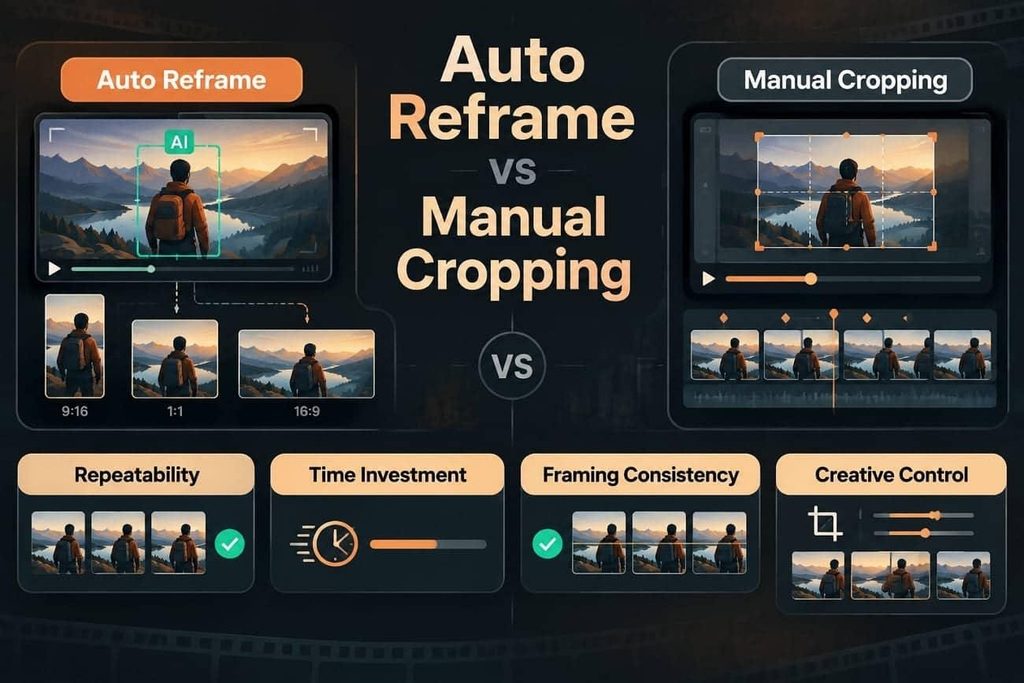
Auto reframe in Filmora offers speed, while manual cropping provides precise framing control. Now, let’s compare both methods across time, control, consistency, and publishing needs.
- Repeatability: Automated reframing applies consistent treatment across 40 different video clips. Manual cropping creates small framing differences that appear during playback.
- Time Investment: Keyframing subjects across 5-minute interviews can consume an entire afternoon. AI analysis reduces work, leaving review as the main remaining task.
- Framing Consistency: Automated tracking keeps subjects positioned consistently throughout the video timeline. Manual cropping may slowly shift framing toward the center over time.
- Creative Control: Manual cropping remains stronger for intentional and unique compositions. Trackers may correct off-center designs that serve creative purposes.
What to Check Before Publishing Reframed Videos
Before publishing, check the final cut to ensure every important element stays visible:
- Confirm the subject stays inside the frame from first shot to last.
- Check that titles and captions have not been pushed outside the new edges.
- Look for logos and watermarks that the narrower frame has clipped.
- Verify that product details and on-screen figures are still readable.
- Watch the whole cut play through rather than judging from a paused frame.
Conclusion
Auto reframe tools make it easier to adapt one video for multiple platforms without rebuilding every crop manually. The best options balance accurate tracking with enough control to refine framing when needed. Filmora combines automated reframing with practical editing tools, making it a strong video editor for creators producing content in multiple formats.
FAQs About Auto Reframe Tools
- What is auto reframe?
It automatically crops videos while tracking subjects and important actions inside frames. The tool moves a smaller frame to maintain visibility across aspect ratios.
- Which videos benefit most from automatic reframing?
Videos with clear subjects, including tutorials and social clips, reframe successfully. Filmora works well for interviews, demonstrations, and content with focused subjects.
- Is auto reframe better than manual cropping?
Auto reframe offers faster, consistent results across multiple video versions and formats. Manual cropping remains better when creators need specific creative compositions.
- How do I choose an auto reframe tool?
Choose tools that fit your editing workflow and reduce extra export steps. Then consider tracking accuracy, adjustment options, and control after analysis finishes.